 Tech Drop Daily
10 Windows 11 shortcuts you'll use every day
 Out Fri 20 Nov
10 Windows 11 Tricks You'll Use Every Day
Most people use Windows every day and never touch the shortcuts that save the most time. Here are ten that are built in, safe, and worth learning. Number 7 fixes a frozen screen in one second.
Clipboard history
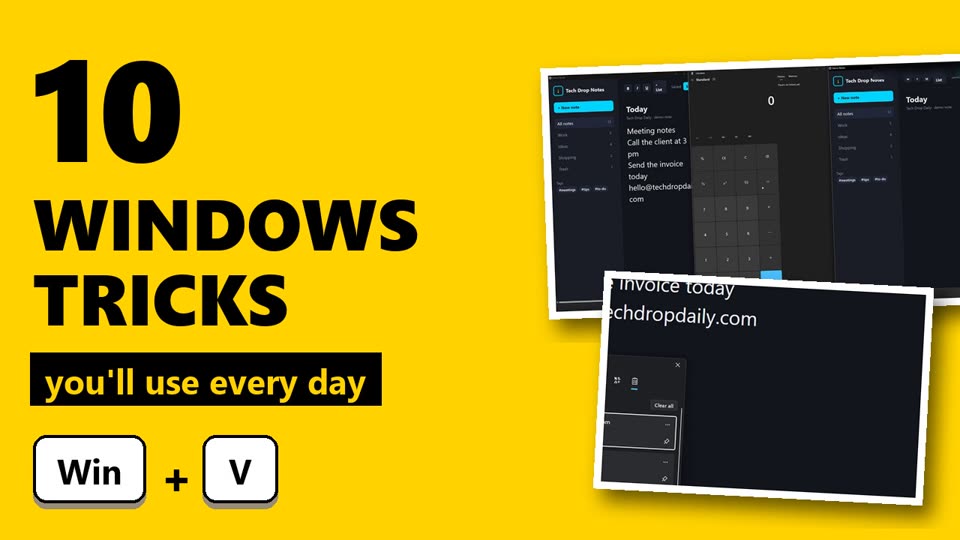
Win+VOpens a list of the things you copied recently, not just the last one. Click any item to paste it.
Pin the things you paste all the time, like your email address or a reply you type every day. Pinned items stay after a restart. The first time, Windows asks you to switch the feature on: click Turn on.
Emoji and GIF panel
Win+.Opens a panel of emoji, GIFs, symbols and kaomoji faces anywhere you can type: email, documents, chat apps. Start typing to search it.
Screenshot any part of the screen
Win+Shift+SThe screen dims and you draw a box around what you need. It is copied straight away, ready to paste.
Click the notification that pops up to mark it up or save it as a file. The bar at the top also lets you grab a whole window or the full screen.
Voice typing
Win+HClick into any text box, press the keys and just talk. Windows types what you say. You can let it add punctuation for you: open the small settings button in the voice typing bar and turn on auto punctuation.
Great for long emails and notes. You need a working microphone.
Snap layouts
Win+ZPick a layout: two windows side by side, three columns, or one big window and two small ones. Windows then offers your other open windows to fill the gaps, so you never drag and resize by hand.
Virtual desktops
Win+Ctrl+DCreates a new, empty desktop. Keep work on one and everything else on another.
Switch between them with Win+Ctrl+←/→. Close the one you are on with Win+Ctrl+F4; its windows move to the next desktop, nothing is closed.
Fix a frozen or black screen
Win+Ctrl+Shift+BRestarts the graphics driver. The screen blinks, you hear a beep, and your open apps stay exactly where they were.
If the screen is still stuck after that, save what you can and restart the PC.
Live captions
Win+Ctrl+LAdds real-time subtitles to anything playing on your PC: a video, a meeting, a podcast. Perfect when you can't turn the sound up. The first time, Windows downloads the language files it needs.
Switch speakers fast
Win+Ctrl+VOpens the sound output panel. Switch between speakers and headphones in one click, and change the volume of each app on its own.
Task Manager in one move
Ctrl+Shift+EscWhen an app stops responding, skip Ctrl + Alt + Delete. This opens Task Manager directly. Select the app, click End task, done.
Only end apps you recognise. Leave Windows processes you don't know alone.
All built into Windows 11. Nothing to download. Win is the Windows logo key.